Nike Hoodie Checks: fashionreps Spreadsheet vs Google Sheets
Inside this note
This guide solves a specific problem: after you spot Nike fall/winter hoodies in fashionreps' site-style product catalog, how to confirm that the size info, colors, product cards, and target links all match up, then organize the results into Google Sheets without mixing up different styles or wrong links. It's for people who are comparing Nike hoodies and need to save candidates. It does not replace seller verification, offici
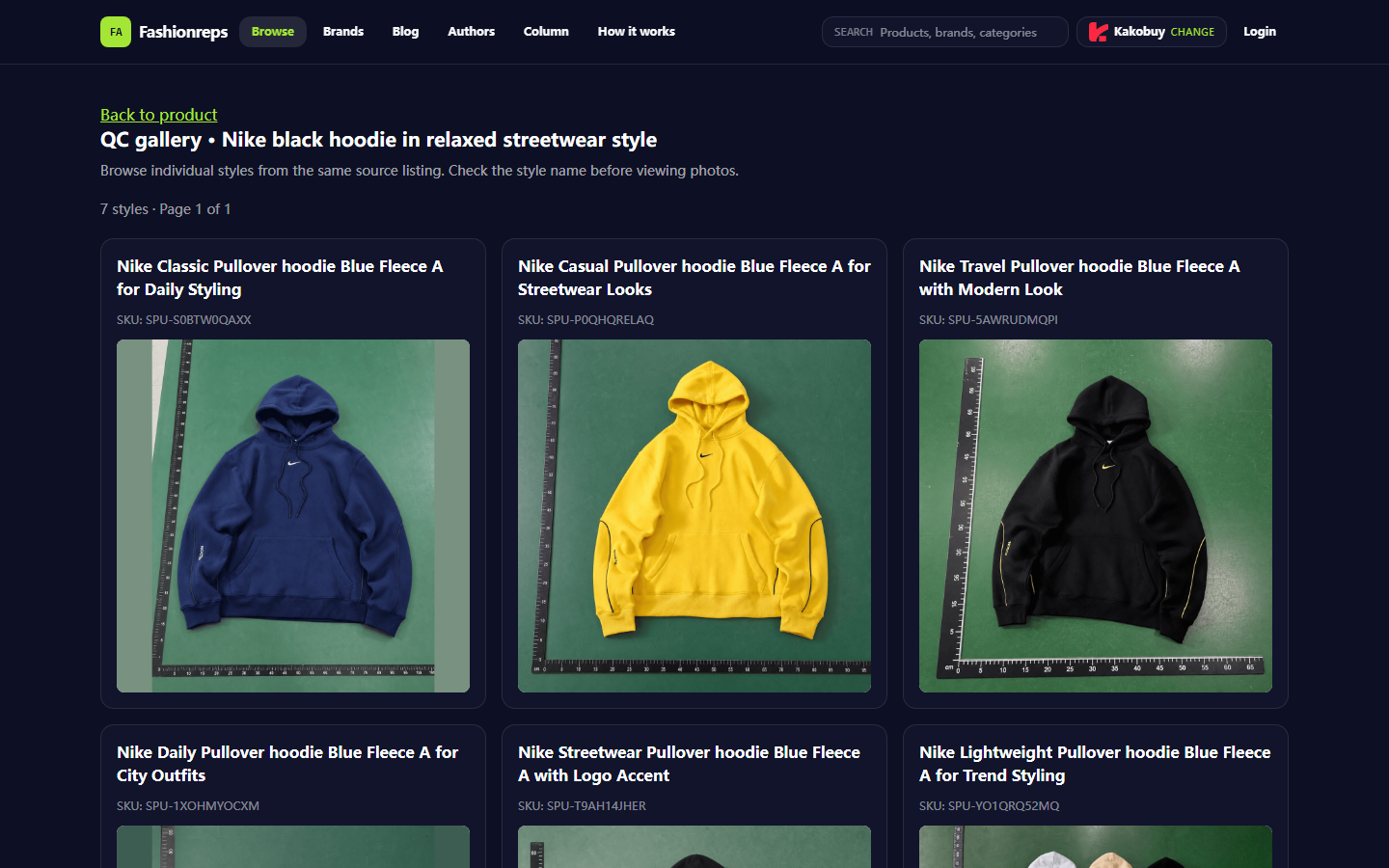
This guide solves a specific problem: after you spot Nike fall/winter hoodies in fashionreps' site-style product catalog, how to confirm that the size info, colors, product cards, and target links all match up, then organize the results into Google Sheets without mixing up different styles or wrong links.
It's for people who are comparing Nike hoodies and need to save candidates. It does not replace seller verification, official size charts, stock checks, or after-sales support; price, stock, material, seller info, and link status should all be re-verified before proceeding. This article only covers information checking and organizing, and does not imply any purchase, receipt, or wear testing.

Image: Example page for checking style name, SKU, and QC photos.
The Nike Check Task This Article Solves
Start by limiting the task to four checks:
- Is this the target Nike hoodie, not a similar style or another variant from the same source?
- Are the size, color, and style name on the page from the same product row?
- Do the product card, QC page, and the link you plan to save all point to the same item?
- Is the info enough to support further comparison, not just a vague bookmarked link?
If any of these can't be confirmed, mark it as "needs verification" instead of "ready to buy." Especially when a source lists multiple styles, check the full style name and SKU before looking at photos. Similar names on a page should not be assumed to be the same product.
How to Locate Nike Fall/Winter Hoodies in fashionreps' Site Spreadsheet
Start from the brand or product catalog to get to Nike, then use page search, category browsing, or visual product cards for an initial filter. The site-style spreadsheet's strength is putting product discovery, product cards, image links, and QC browsing in the same path—great for answering "what are the candidates?"
When locating, check in this order:
- Confirm the brand and product category, excluding shoes, accessories, and non-hoodie pages.
- Read the full product name on the card—don't just rely on short words like "Nike" or "hoodie."
- Note the color, fit description, and SKU shown; don't fill in missing fields yourself.
- Open the product detail or QC page to confirm the photos belong to the current style.
- If the page lists multiple similar styles, check each name and SKU; don't let the first photo represent all styles.
- Save the current page URL, then separately verify that the external purchase link still points to the same product.
Site navigation is good for discovery, but it shouldn't be treated as a final size database. Product cards may only show short descriptions; specific sizes, measurement methods, and available colors still need to be checked on the product page. 🔎
How to Set Up Size and Link Check Columns in Google Sheets
In Google Sheets, use one row per distinct style. Don't mix multiple colors or multiple styles of the same product in one row, otherwise it's hard to tell if images and links match.
Use these fields:
| Field | What to record | Purpose |
|---|---|---|
| Brand | Nike | Confirm brand scope |
| Product name | Full name shown on page | Avoid keyword-only judgments |
| Style or SKU | Style name, SKU, or other identifier shown | Distinguish similar styles |
| Color | Color explicitly stated on page | Avoid treating photo color as official field |
| Size info | Size, measurements, or size chart status shown on original page | Decide if further measurement is needed |
| Product page | Current product detail page URL | Return to original info |
| QC page | URL of image/QC page for that style | Check appearance and style match |
| Check date | Date of this visit | Mark timeliness |
| Status | Needs verification, info consistent, discrepancy, skip for now | Control next action |
| Notes | Specific discrepancy or missing field | Keep basis for judgment |
For size, keep original units and wording. If the page only gives letter sizes like S, M, L, don't estimate chest, length, or height from common assumptions. If the page provides flat measurements, you can split chest width, length, shoulder width, and sleeve length into separate columns and note the measurement method; if no method is given, write in notes that the measurement basis is unknown.
To reduce errors, add a dropdown for "Status" and use filters to view only "info consistent" or "discrepancy" rows. That way Google Sheets handles organizing, filtering, and collaboration—not replacing product discovery on the site. 📋
How to Match Product Cards to Spreadsheet Rows Item by Item
For each new row, do a read-back from page to sheet:
- Does the product name match the current page?
- Is the SKU or style ID from the current page, not another browser tab?
- Is the color supported by page text?
- Is the size info from this style, not a similar one from the same source?
- Do the product page and QC page lead back to the same style?
- Are the details you see in photos just visual observations, or explicitly stated on the page?
Photos can help you observe color, logo placement, silhouette, or stitching details, but they alone can't prove size, material, stock, authenticity, or seller promises. For example, a photo looking thick doesn't mean "fleece-lined," and a baggy look can't replace real measurements. 🧵
When a page shows multiple similar styles, the safest approach is a separate row for each style, noting "different style, same source" in the notes. If you can only confirm the source page but not the specific style, don't merge multiple products into one record.
Evidence Boundaries for Photos, Sizes, Colors, and Product Links
Different fields need different evidence:
- Photo evidence: only supports what's directly observable—color appearance, logo placement, and page-shown details.
- Page text: supports product name, SKU, color name, and size info explicitly listed.
- Size chart or measurement data: supports specific size comparison, but must keep units and measurement basis.
- Product link: only proves you saved a URL, not that it stays valid, in stock, or pointing to the same product.
- QC page: for checking the photos for the current style, not a quality guarantee or official certification.
If the page redirects, shows empty content, won't open, or the product card and detail page names differ, change status to "discrepancy" or "needs verification" and note the date. Don't fill in missing info from search snippets or browser cache.
Which Steps Are Better on Mobile vs. Computer
Mobile is good for quick discovery, viewing product photos, checking if pages open, and excluding clearly irrelevant items. With a small screen, it's not good for comparing multiple size fields side by side or copying long links and checking if they pasted completely.
Computer is better for setting up Google Sheets, freezing header rows, filtering statuses, viewing product and QC pages side by side, and checking names, SKUs, and links item by item. For collaboration, use notes to record "who checked which field on what date" to avoid treating temporary judgments as current facts.
If you must record on mobile, at least save product name, SKU, original page URL, and "needs verification" status, then fill in size and color fields later on computer. Don't fill in values from photos or memory just to record faster.
How to Record When Info Doesn't Match and Return to the Target Page
Common mismatches: product card name differs from detail page, QC page lists multiple styles, color text doesn't fully match photo appearance, size field missing, link redirects to another product, or accidentally pasting URLs from different sources in one row.
Handle in this order:
- Pause copying and comparing; don't infer further.
- Keep the original content in the sheet and change status to "discrepancy."
- Write the specific discrepancy in notes, e.g., "Card shows black, detail page has no color field."
- Return to the target product page and re-read full name, SKU, size, and link.
- If the discrepancy remains, split into two rows or keep as "needs verification"; don't force a merge.
- After re-reading, decide whether to continue comparing or remove the candidate.
This way is safer than overwriting old values, because later collaborators can see what happened and tell page changes from data entry errors.
When to Use Site Spreadsheet, Google Sheets, or Both
| Approach | Better for | Main limitation |
|---|---|---|
| Site spreadsheet | Discovering Nike candidates, browsing product cards, entering image/QC pages | Shouldn't replace size charts and latest stock checks |
| Google Sheets | Organizing fields, filtering candidates, collaboration, recording check dates | Can't prove page content is true or links stay valid |
| Combined | Site discovers candidates, sheet saves evidence and discrepancies, then return to page to re-check | Requires manual consistency between product rows, styles, and links |
If you're just looking for a few candidates, the site directory is more direct. If you need to compare size fields, colors, and QC status across multiple Nike hoodies, Google Sheets is better for structured records. When combining, the sheet should be a verification log, not a way to package unverified info as fact.
Final Step: Save Your Check Results Before Deciding to Proceed
After checking, save the sheet and reopen the target page to confirm at least these results: product name clear, style or SKU distinguishable, size field sourced, color not guessed, product and QC pages matching, link status recorded, check date filled in.
This process mainly saves time on repeated searching and data entry, especially for organizing multiple candidates. The trade-off is extra recording and re-reading steps, plus you still face risks of page changes, different size standards, broken links, and one-time judgment errors. It's for people who want to compare info before proceeding, not for treating the sheet as a guarantee of stock, quality, authenticity, or after-sales service.
If the product page, QC page, and sheet row can never be matched, don't proceed to order or mark the row as confirmed. Keep the discrepancy record and wait for page info to be re-verified—usually safer than moving forward with wrong sizes or wrong links.
Community feedback
5 approved
Reader score 4.2 / 5 (5 ratings)